This short guide explains how to invite team members to Timetics AI.
Invite a Single Team Member
- Log in to your Timetics AI account
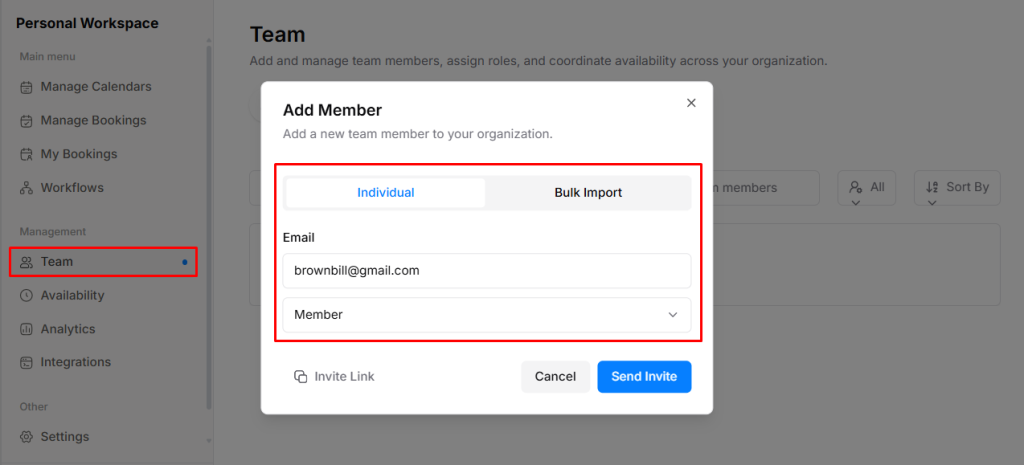
- Go to the Team menu and click “Invite Team“
- A pop-up window will open
- Enter the member’s email address
- Select a role: Admin, Manager, or Member
- Click on Send Invite
Bulk Invite Team Members
Use this option to invite multiple team members at once using a CSV file.
- Go to the Team section and click Bulk Invite
- Upload a CSV file with team members’ email addresses
- Drag and drop the file or click Browse to upload
- Ensure the file size does not exceed 10MB
- Click Send Invite
Activation
- Invited users will receive an email invitation
- Team members become active only after accepting the invite
- Once the invitation is accepted, the team member will need to sign up. After signing up with the provided details, they will be able to log in to their account and access the team features.