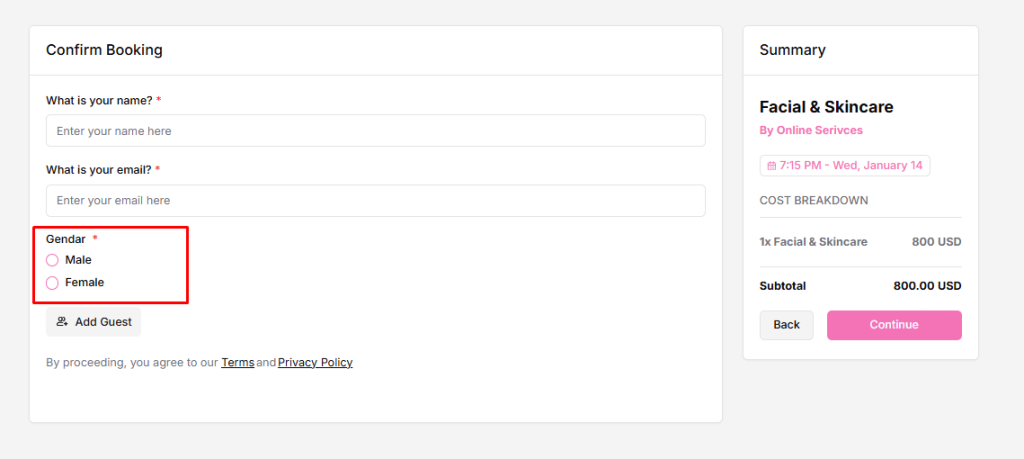
Booking Questions help you collect extra details from invitees when they schedule a time, so you can understand the meeting goal, gather preparation details, avoid back-and-forth messages, and run meetings more smoothly.
Types of Questions
- System Questions (default, cannot be removed)
- What is your name? – identifies the invitee
- What is your email? – used for booking confirmation and notifications
- Labels can be edited, but the questions remain mandatory
- Custom Questions (create your own)
- Ask about the meeting purpose, requirements, or notes
- Can be turned on/off anytime
How to Add a Custom Question
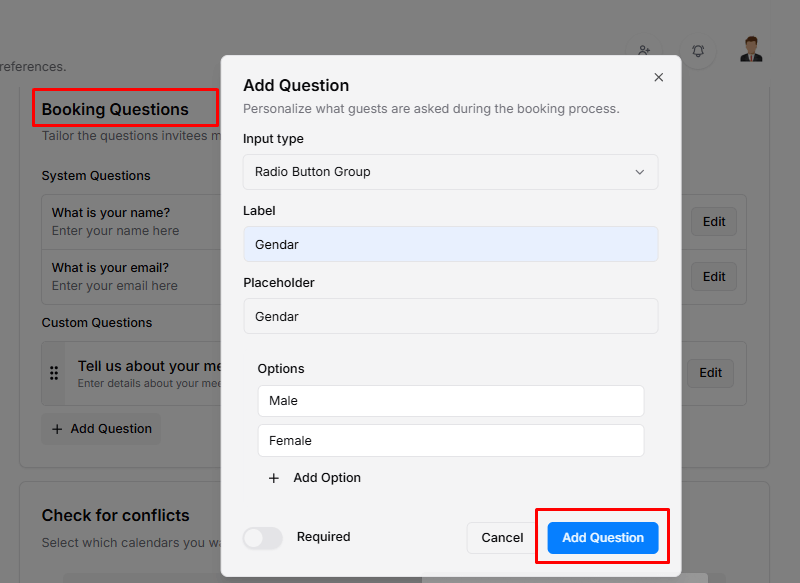
- Go to Booking Questions
- Click Add Question
- Choose an Input Type:
- Text Area →
textarea - Email →
email - Website URL →
url - Single Selection Dropdown →
select - Checkbox Group →
checkbox - Text Input →
text(selected) - Radio Button Group →
radio - Multiple Selection Dropdown →
multi_select
- Text Area →
- Enter a Label – the question users will see
- Enter a Placeholder – helper text inside the field
- Toggle Required if an answer is mandatory
- Click Add Question – it will appear on your booking form
Manage Existing Questions
- You can edit, enable or disable, delete, and reorder questions to manage their labels, visibility, and order.
Front-end View – Details