Service-Based Bookings allow small businesses, such as tutors, coaches, consultants, or doctors, to offer their services online. This enables clients to schedule and book sessions directly through a personalized link, streamlining the appointment process and improving customer convenience.
Watch the full video to learn how to manage a service-based booking.
Follow these steps to set up a Service-Based Booking:
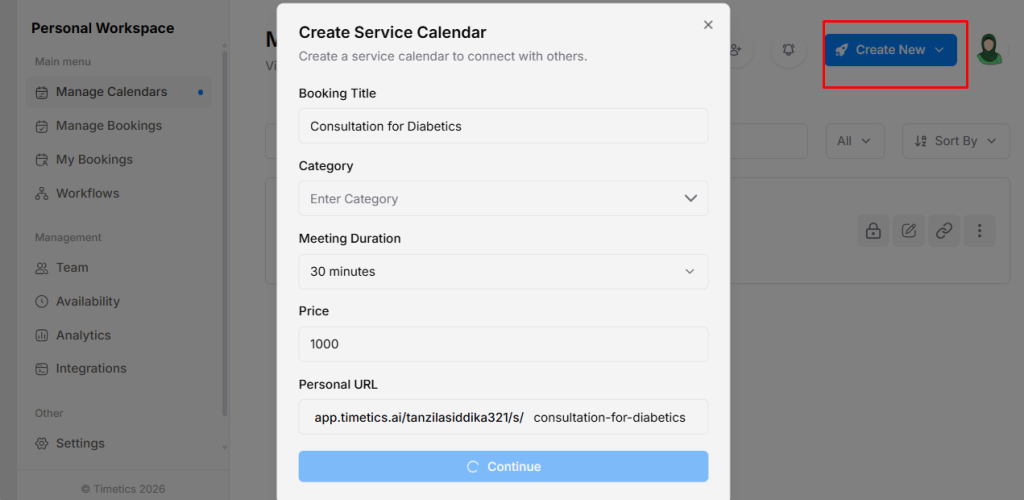
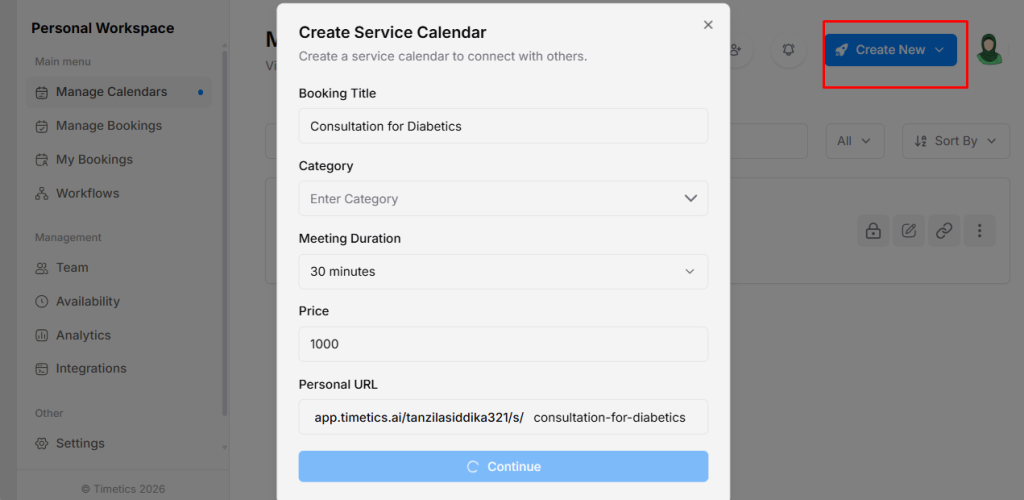
- Go to Manage Calendars → Create New → select Service-Based Booking from the dropdown.
- Fill in the service details in the pop-up: Booking Title, Category, Meeting Duration, Price, and Personal URL.
- After clicking the Continue button, you will be redirected to the Setup Calendar screen.
From here, you can configure all necessary settings for your Service-Based Booking.
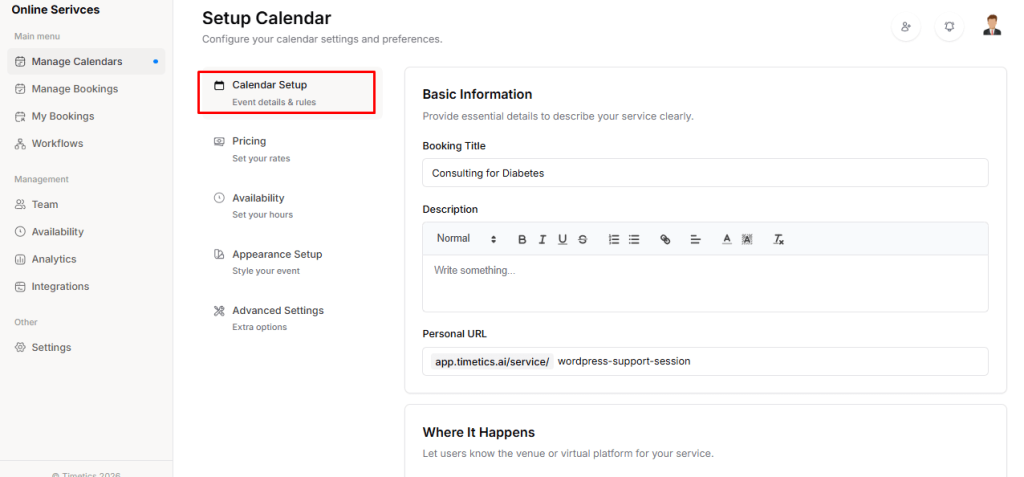
Calendar Setup:
In the Calendar Setup section, you can define the basic details of your booking. This includes the Booking Title, Description, Meeting Duration, Team Member, Personal Booking URL, and Location.
Timetics AI allows you to set your booking as either offline or online.
- For offline bookings, you can choose between “Phone Call” or “In-Person” options. For “In-Person” meetings, select the location and click “Add Branch” to save the address.
- For online bookings, select “Google Meet” as the meeting platform. To enable this option, you must connect your Google account by configuring the Google API from the Settings section.
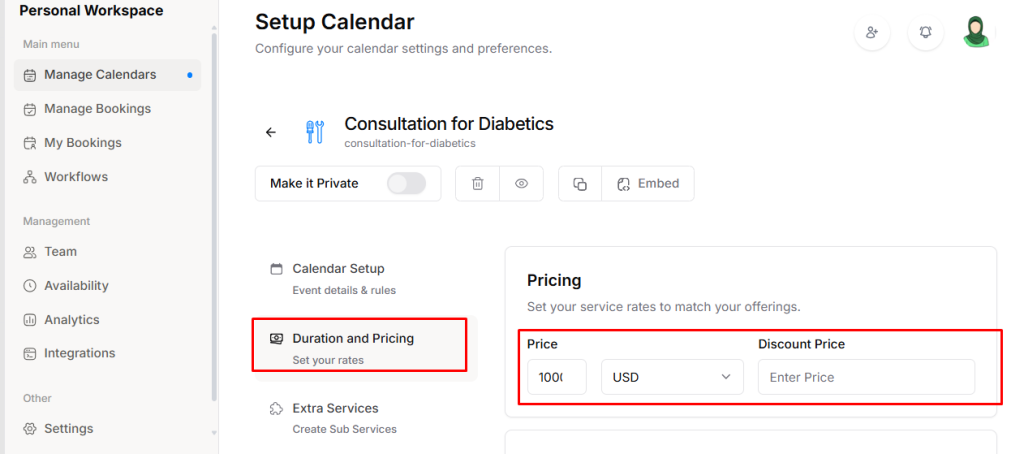
Duration & Pricing:
In the Pricing section, you can set your service Rate and currency for paid bookings. You may also add a Discount Price if you want to offer reduced or promotional rates.
You can also configure:
- Recurring Booking allows you to book the same service at regular intervals.
- Multiple Person Booking to allow group appointments
- Guests are allowed to let clients bring guests with optional extra charges
- Deposit Booking to collect a partial payment upfront (for example, 30%)
- Apply a Coupon to offer discounts using promo codes
- Enable Refunds to allow or restrict refunds based on your policy
This setup gives you full control over how clients pay for your services.
Extra Services
Extra services let you offer optional add-ons with a booking, giving clients more choices and helping increase booking value.
- Go to Service Booking → Extra Service → Add Extra Service.
- Enter the details (Service Title, Short Description, Duration, Price, Thumbnail) in the pop-up and click Save. The extra service will be added to your main service.
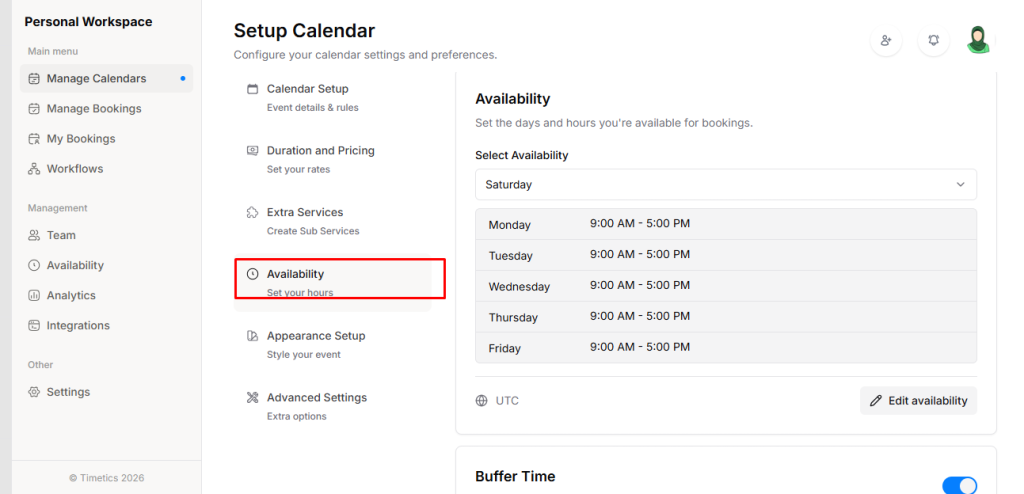
Availability
In the Availability section, you can set the days and hours when you’re available to accept bookings.
You can also:
- Adjust your timezone
- Edit availability as needed
- Add Buffer Time before or after appointments to avoid back-to-back meetings
- Limit the number of bookings per day, week, or year
- Control how far in advance clients can schedule appointments
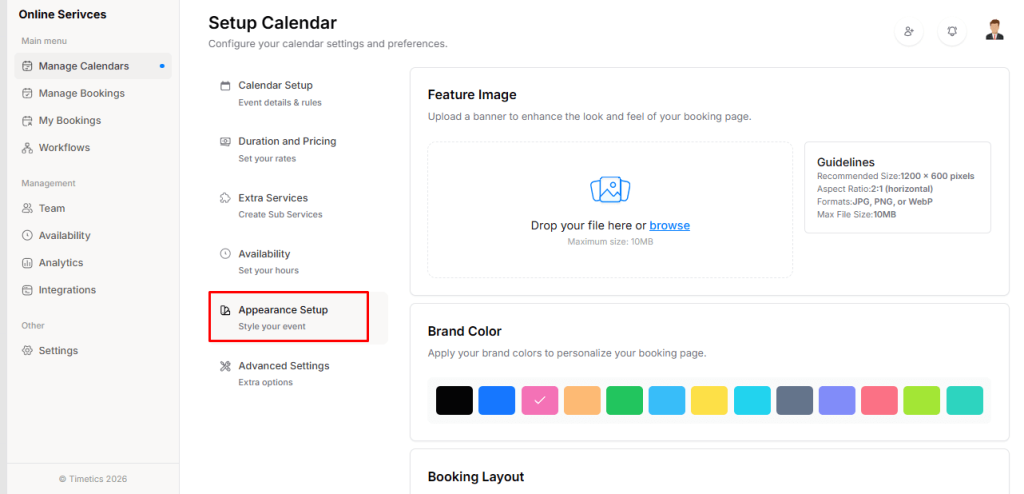
Appearance Setup
In the Appearance Setup section, you can customize the visual style of your booking page. You can upload your Feature Image, apply Brand Colors, and choose the preferred Booking Layout, such as Month, Week, or Day view.
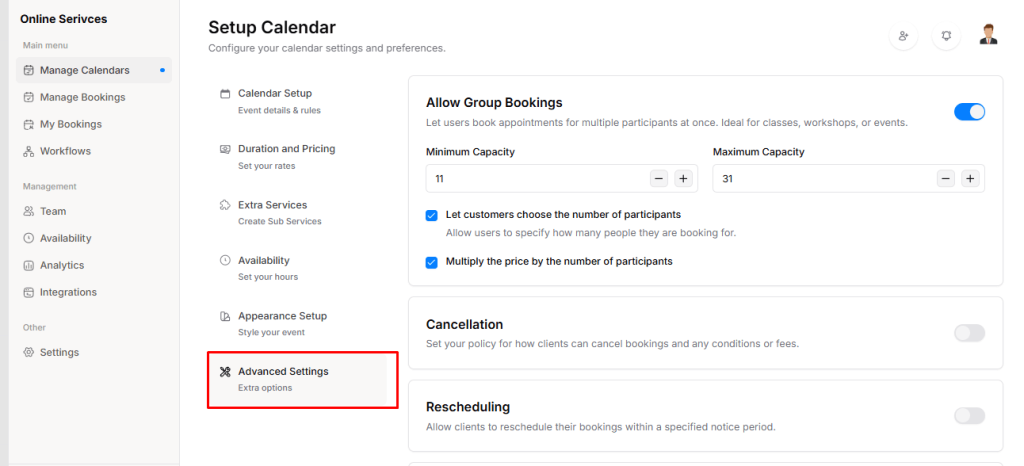
Advanced Settings
In the Advanced Settings section, you can manage additional booking controls and preferences. You can set Group Booking, Cancellation, and Rescheduling Rules, customize Booking Questions for invitees, and enable Calendar Conflict Checks to prevent double bookings.
At the top of the Calendar Setup, you can manage Booking Status, make it Private, Delete, Preview, Duplicate, or Embed it, quickly controlling visibility without altering core settings.
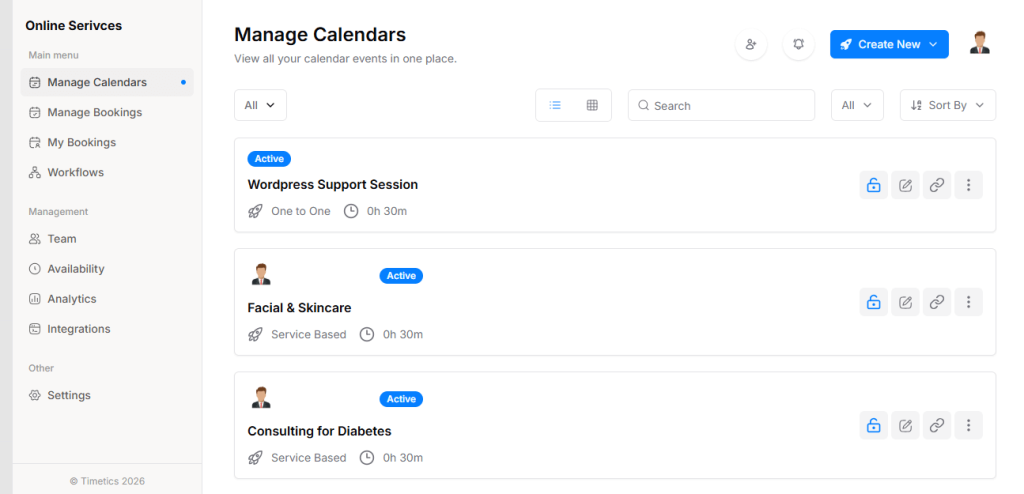
After all settings, go to the Manage Calendars menu, and you can view all bookings. You can filter by Private or Public, switch between Grid or List View, search bookings, sort Ascending or Descending, and filter by One-to-One booking or Service-Based booking.
Front-End Service-Based Booking View
