Step-by-Step Instructions
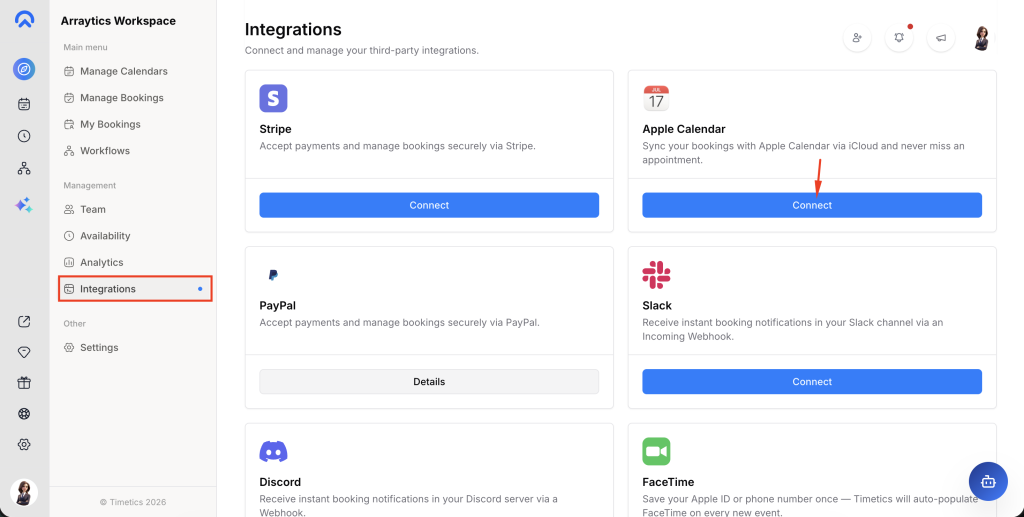
Step 1: Access Integrations
Navigate to Dashboard → Integrations section.
Step 2: Initiate Connection
Find the Apple Calendar option and select “Connect” beneath it.
Step 3: Generate an App-Specific Password
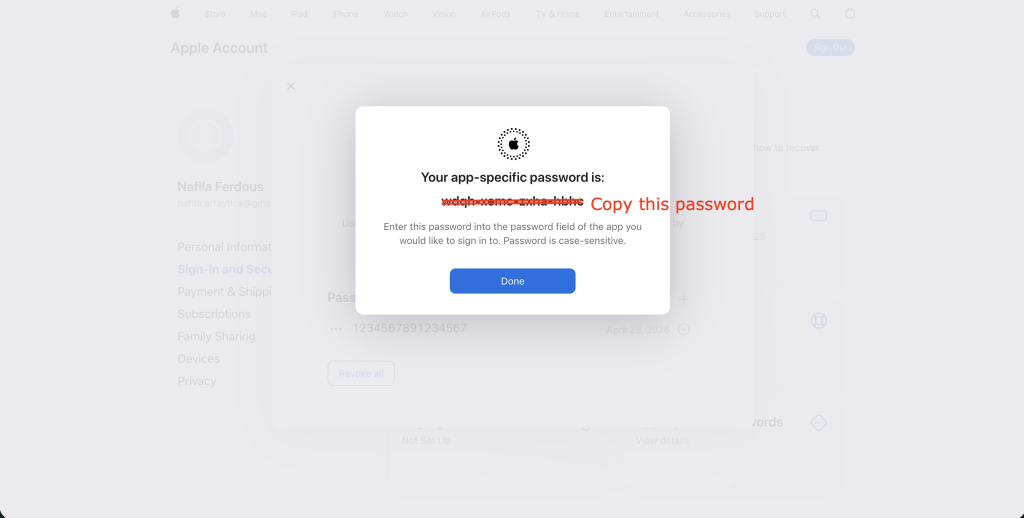
Apple Calendar does not use OAuth. Visit appleid.apple.com/account/manage, sign in with your Apple ID, and generate an app-specific password for Timetics AI. Copy the 16-character password.
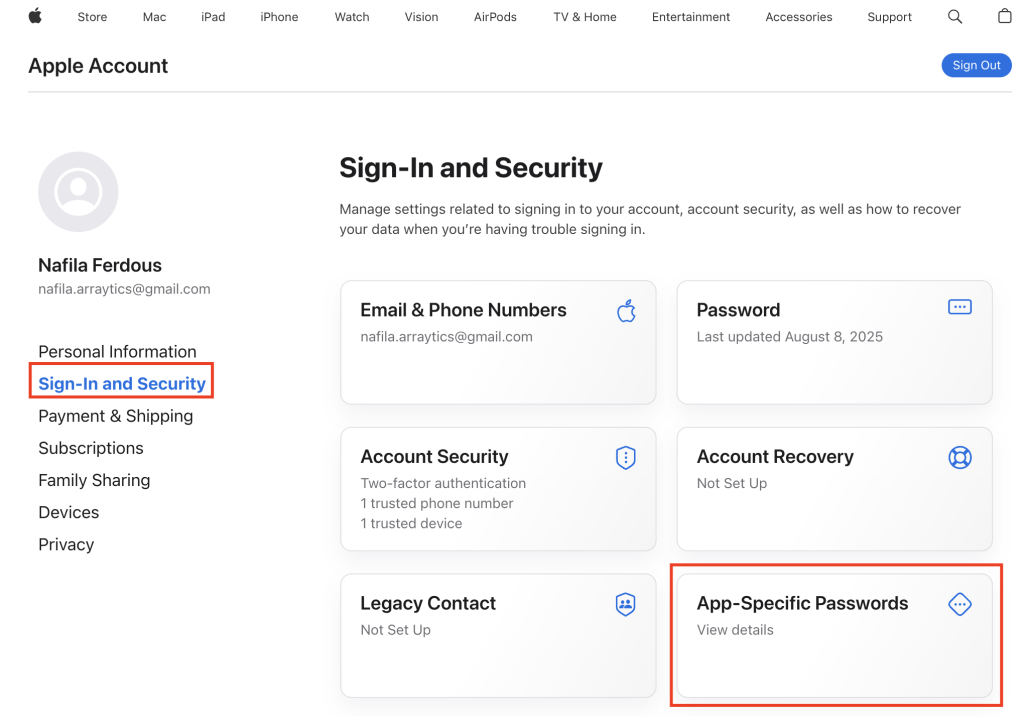
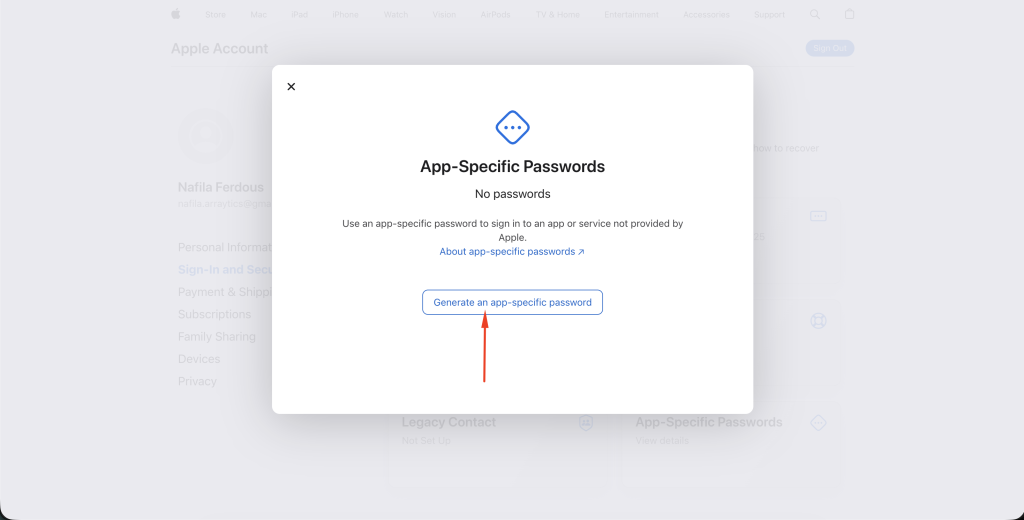
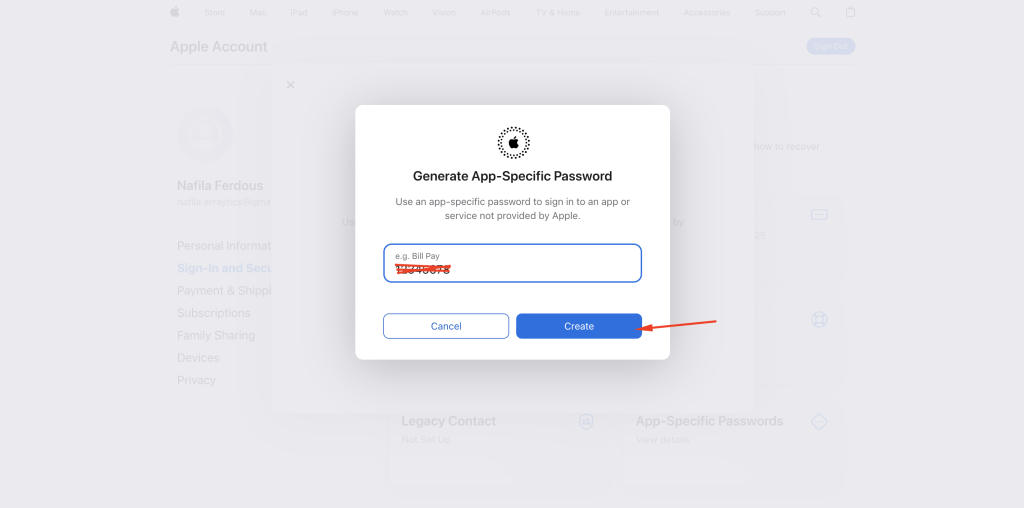
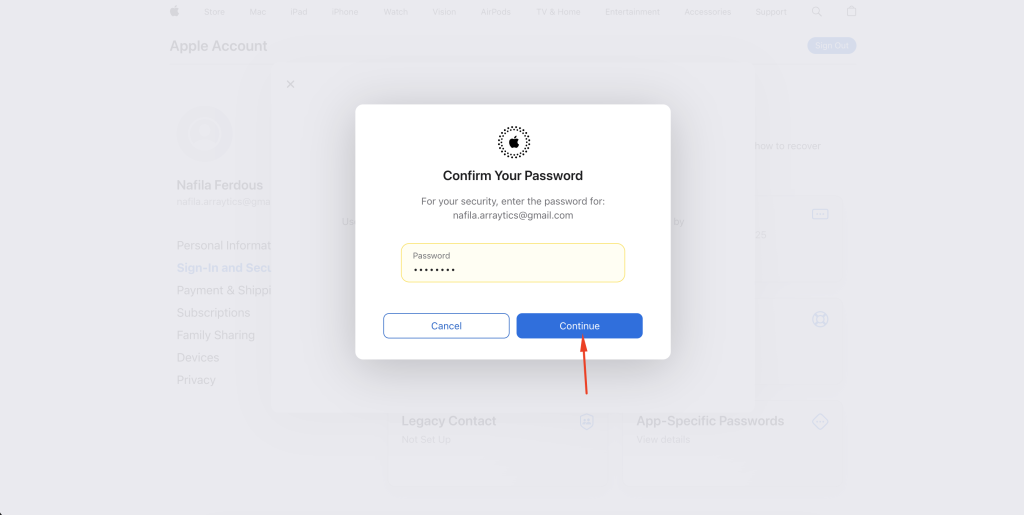
Copy the password shown in the image
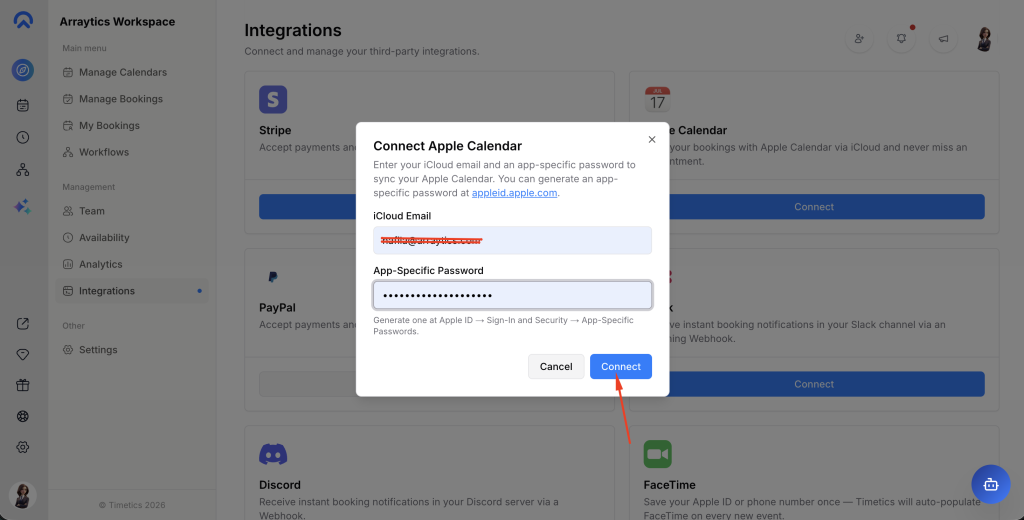
Step 4: Enter Your Credentials
In the connection modal, enter your iCloud email and the app-specific password you just generated, then submit. Timetics AI will securely encrypt and store the password and discover your default calendar via CalDAV.
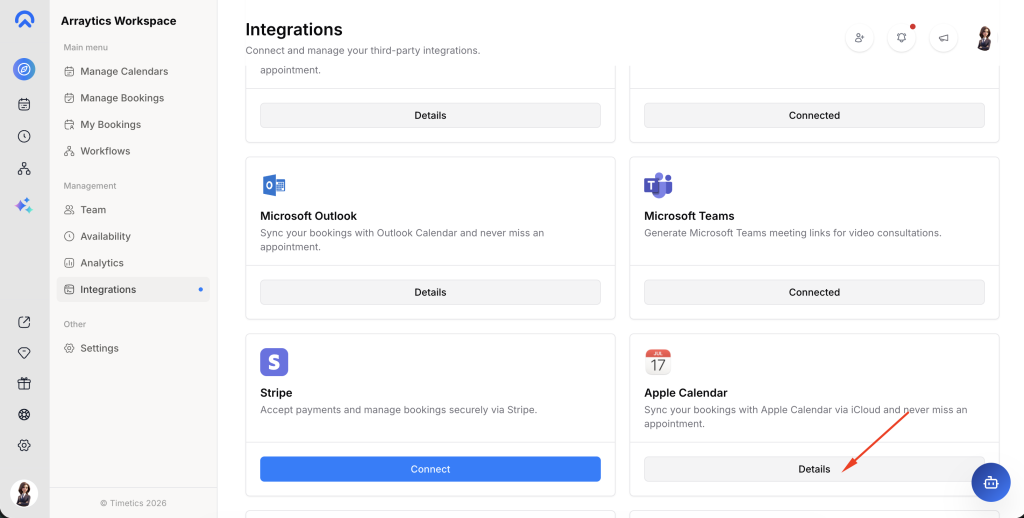
Step 5: Verify Connection
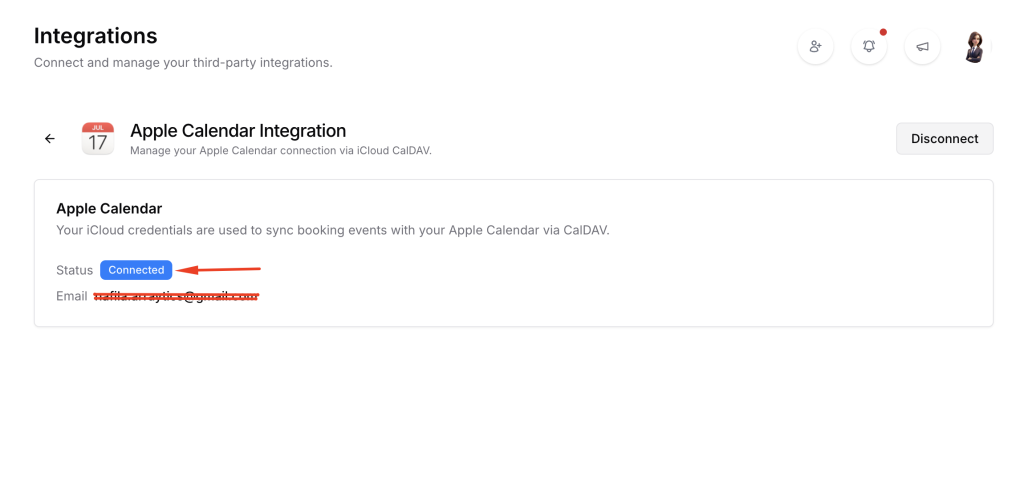
After the connection succeeds, select “Details” to confirm the calendar is properly connected. You will see your connected Apple ID email and a status badge indicating the integration is active.
Step 6: Disconnect (Optional)
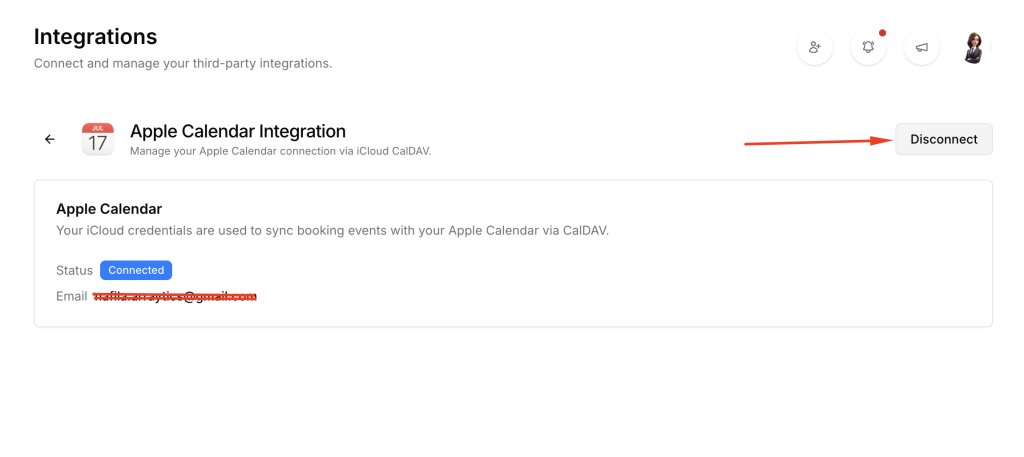
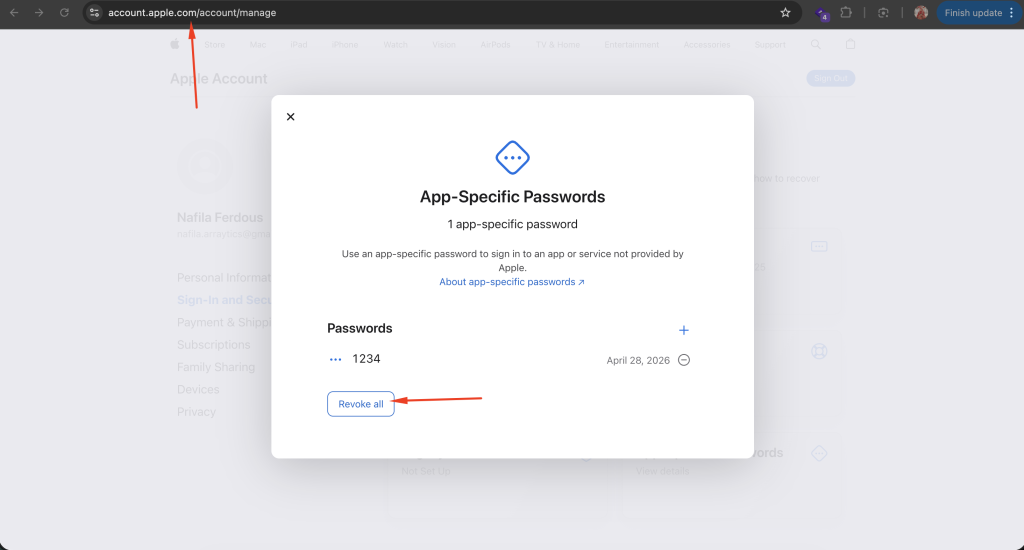
To remove the integration, open the Details view and click “Disconnect”. This removes the stored credentials from Timetics AI. For full security, you may also revoke the app-specific password from your Apple ID account page.
Key Functionality
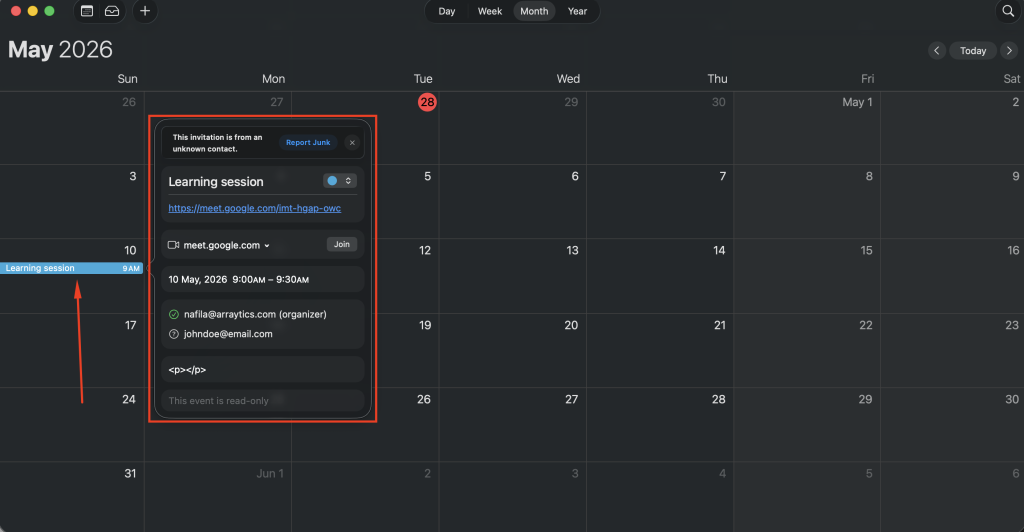
Once integrated, any booking or appointment confirmed in Timetics AI will automatically sync to your Apple Calendar through CalDAV. Event details including title, attendees, organizer, location, and time are written to your default iCloud calendar. Cancellations in Timetics AI will also remove the corresponding event from Apple Calendar.
Prerequisites
- Active Timetics AI account
- Apple ID with iCloud Calendar enabled
- An app-specific password generated from appleid.apple.com
Notes
Apple Calendar integration uses CalDAV with an app-specific password rather than OAuth, so the setup requires an extra step compared to Google or Microsoft Outlook. Only one Apple Calendar account can be connected at a time, and events are synced to your default iCloud calendar. Times are stored in UTC to ensure compatibility with Apple’s CalDAV server.