Step-by-Step Instructions
Step 1: Access Integrations
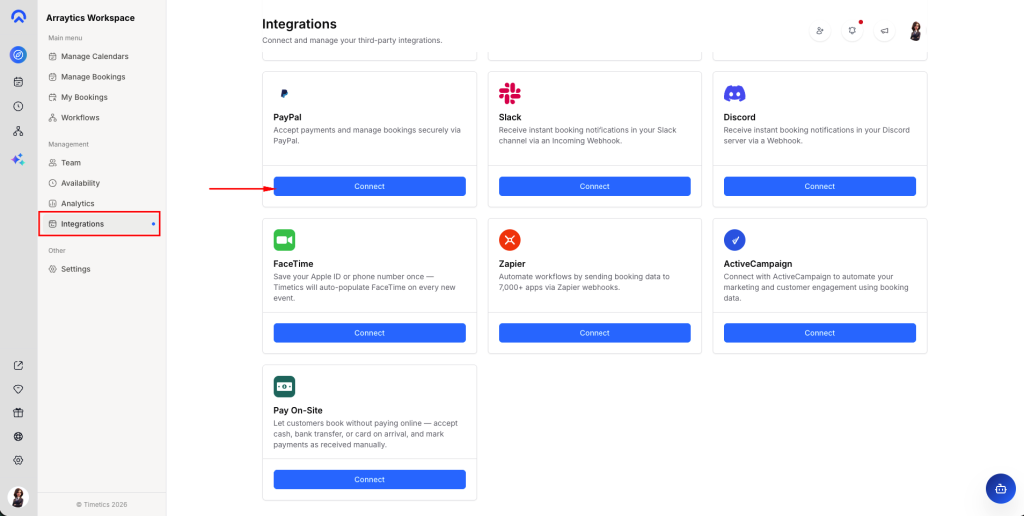
Navigate to Dashboard → Integrations section.
Step 2: Initiate Connection
Find the PayPal option in the Payment integrations and select “Connect” beneath it.
Step 3: Get Your PayPal API Credentials
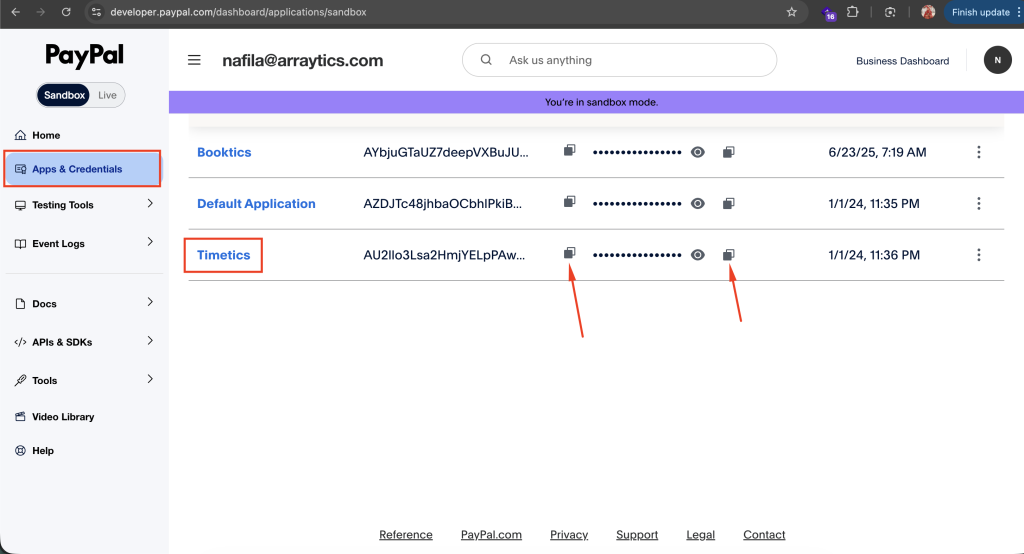
Sign in to your PayPal Developer Dashboard at developer.paypal.com, open “Apps & Credentials”, and locate or create the app you want to use with Timetics AI. Copy the Client ID and Secret Key.
**Step 4: Enter Your Credentials**
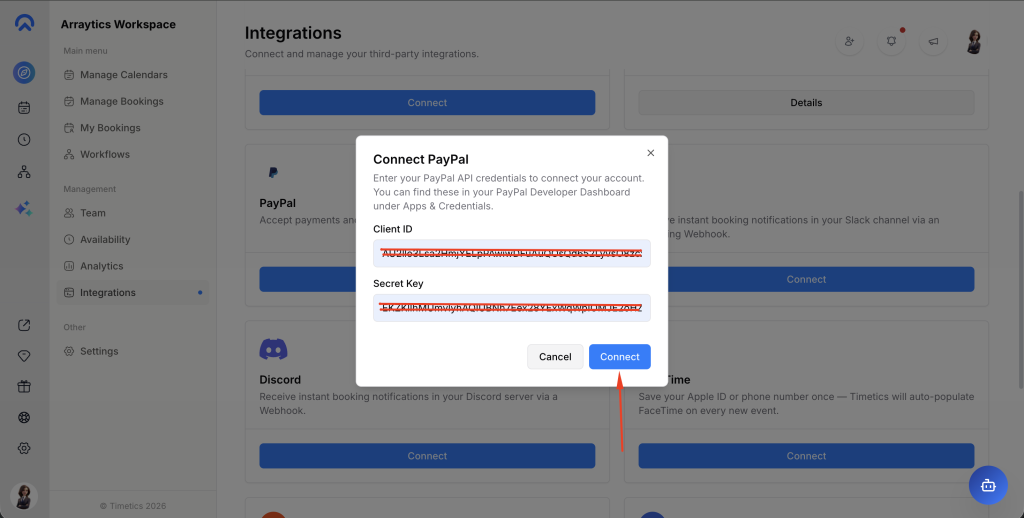
In the connection modal, paste your Client ID and Secret Key into the corresponding fields, then click “Connect”. Timetics AI stores these credentials securely against your workspace.
Step 5: Verify Connection
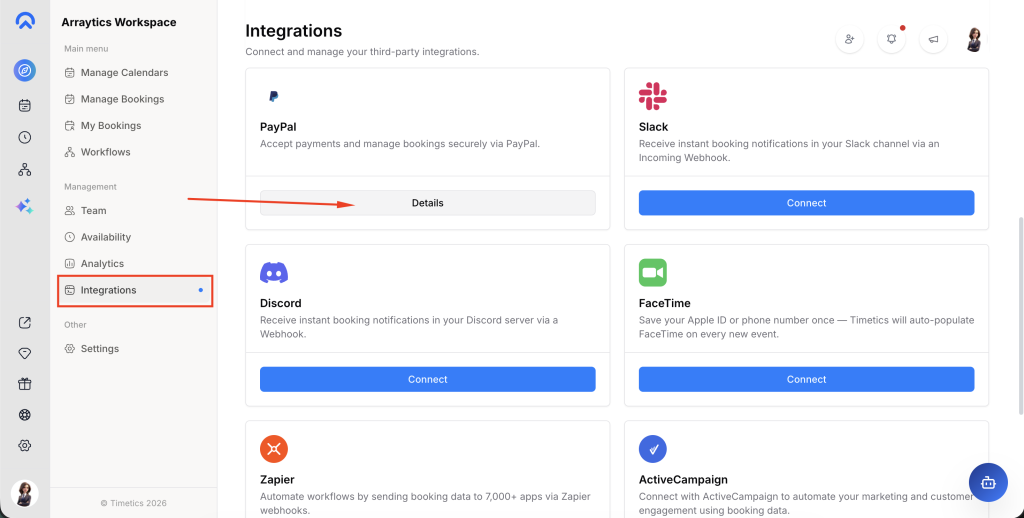
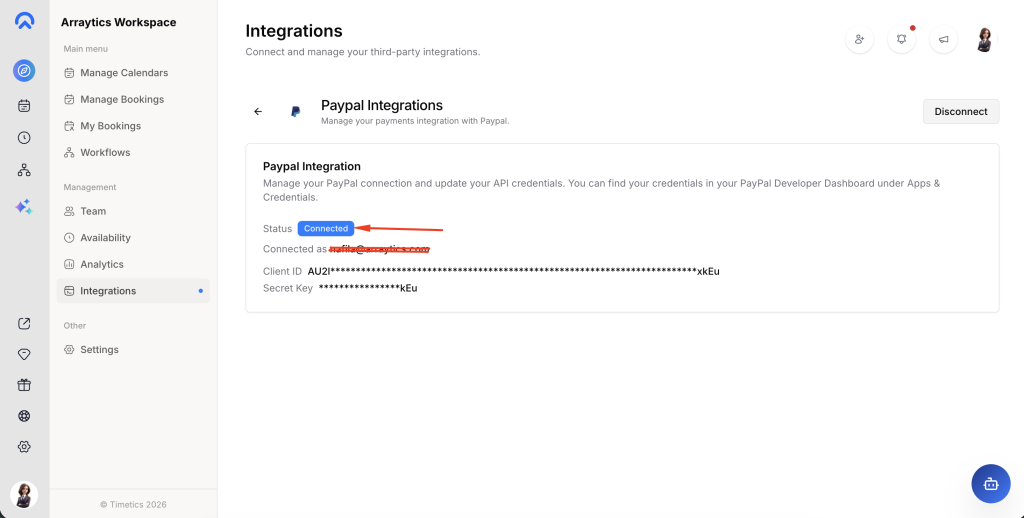
After the connection succeeds, select “Details” to confirm PayPal is properly connected. You will see a status badge, your connected PayPal account email, and a masked preview of your Client ID and Secret Key.
Step 6: Disconnect (Optional)
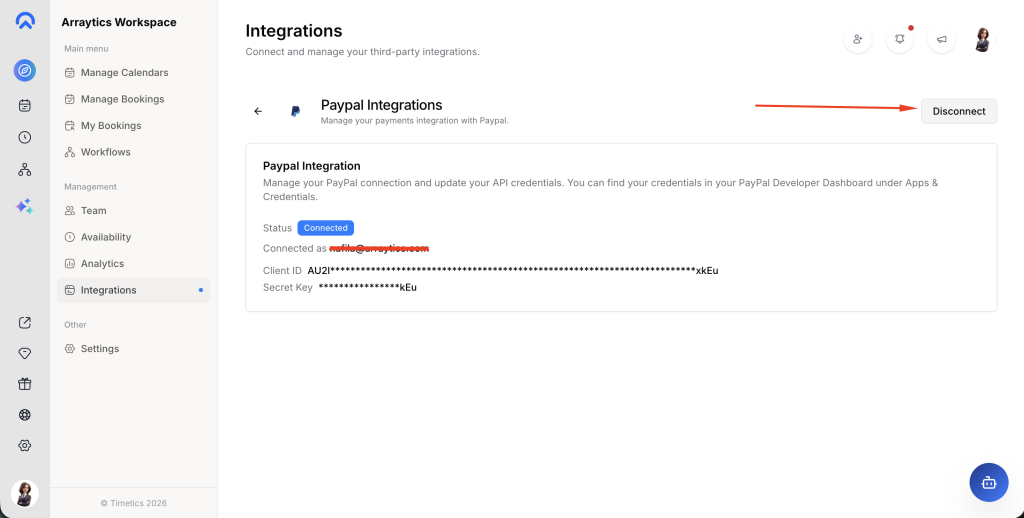
To remove the integration, open the Details view and click “Disconnect”. The credentials will be removed from Timetics AI and PayPal will no longer be available as a payment option for new bookings.
Key Functionality
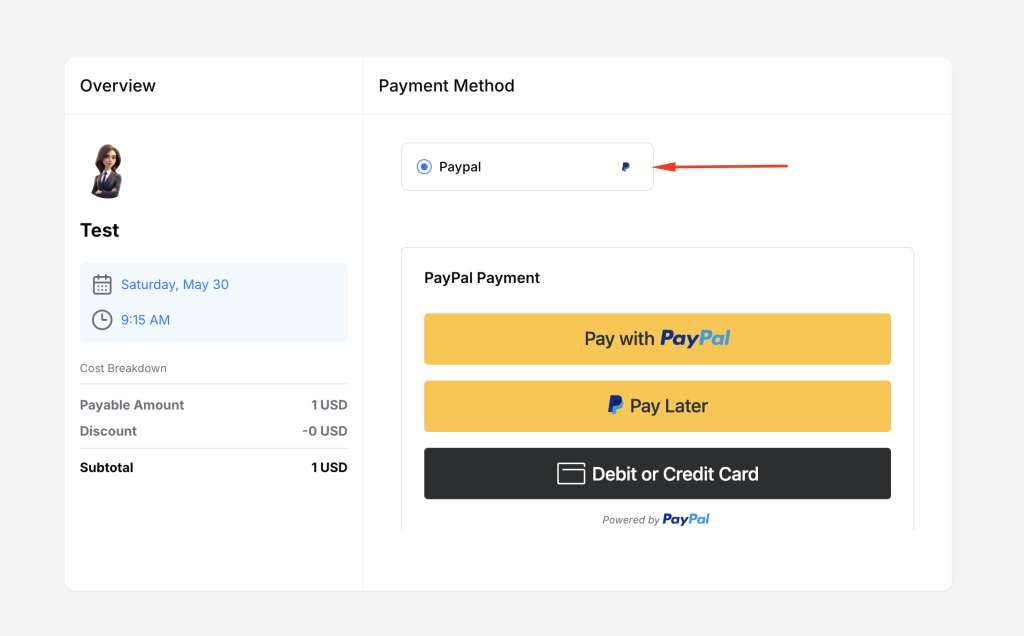
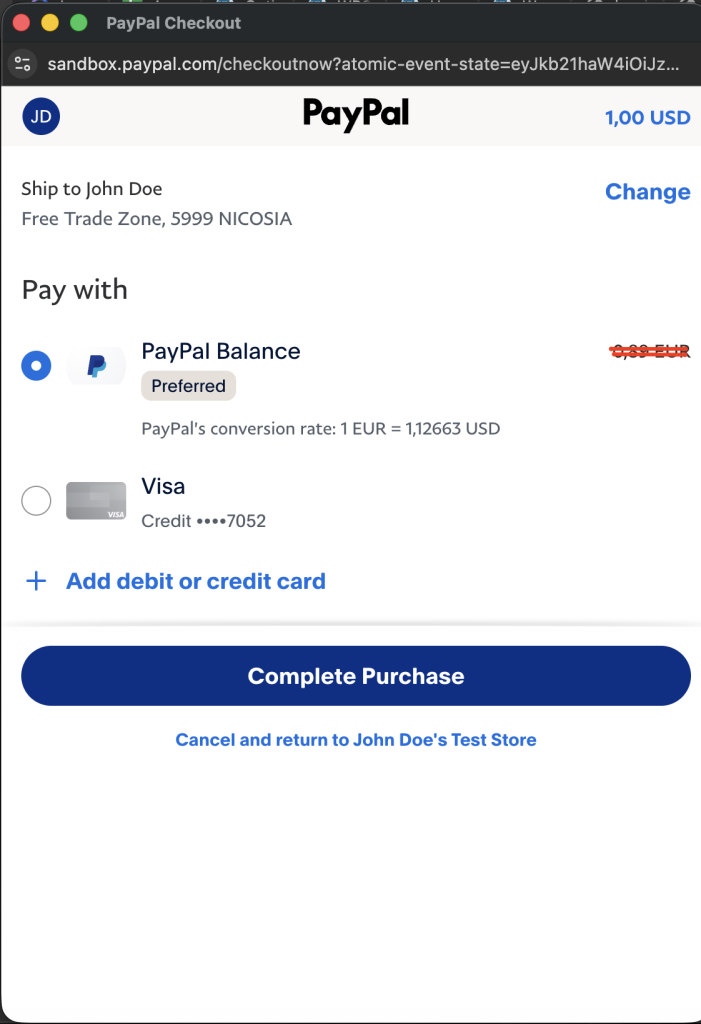
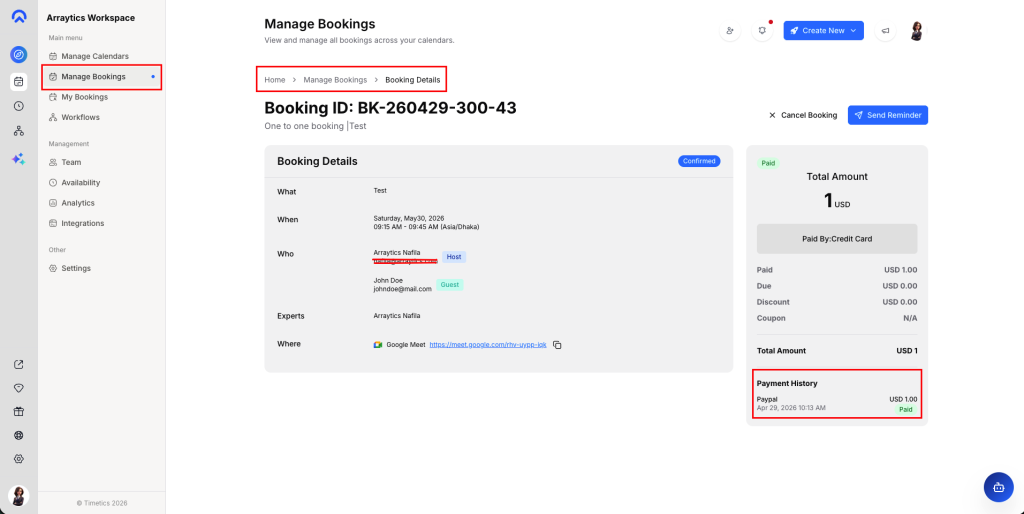
Once integrated, PayPal becomes available as a payment method for paid bookings in Timetics AI. When a customer books a paid appointment, Timetics AI creates a PayPal order using your credentials and the booking’s currency. After the customer completes payment on PayPal, the transaction is captured and the booking is marked as paid. The environment (sandbox or live) is selected automatically based on your Timetics AI deployment configuration, so no manual toggle is needed.
Prerequisites
- Active Timetics AI account on a plan that includes PayPal
- PayPal Business account
- A PayPal Developer app with a Client ID and Secret Key from developer.paypal.com
Notes
Both Client ID and Secret Key are required. PayPal integration is gated by workspace plan, so if your plan does not include PayPal, you will be prompted to upgrade before the connection modal opens. Currency for each transaction is taken from the booking, so make sure your PayPal account supports the currencies you sell in.